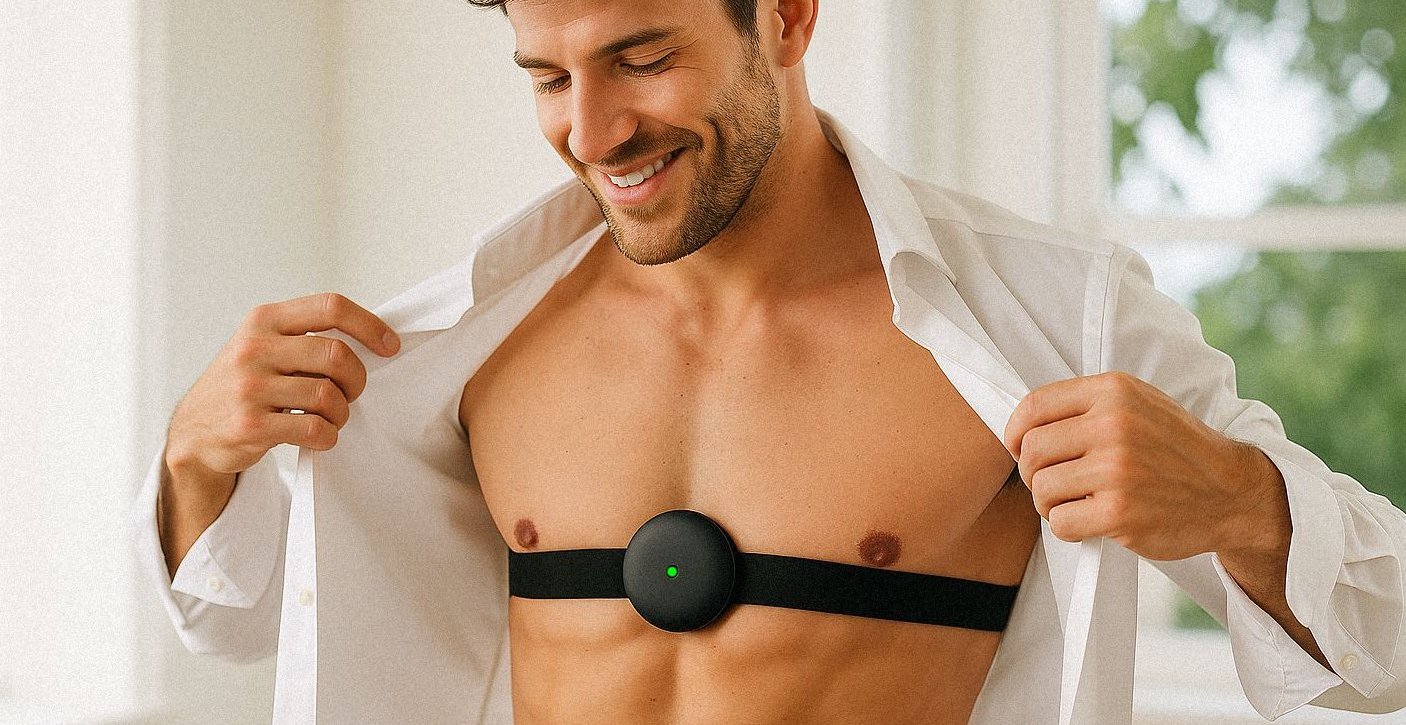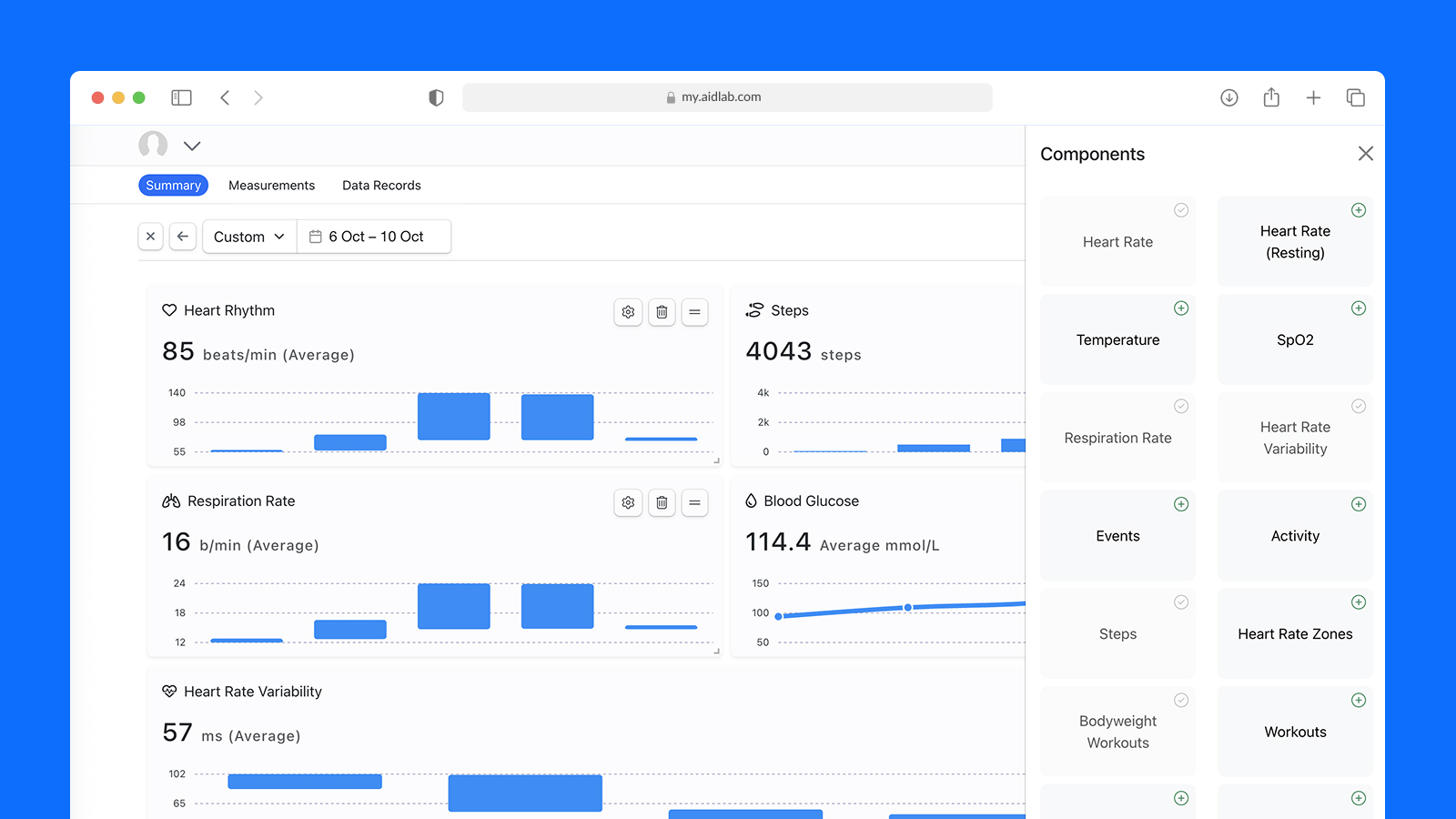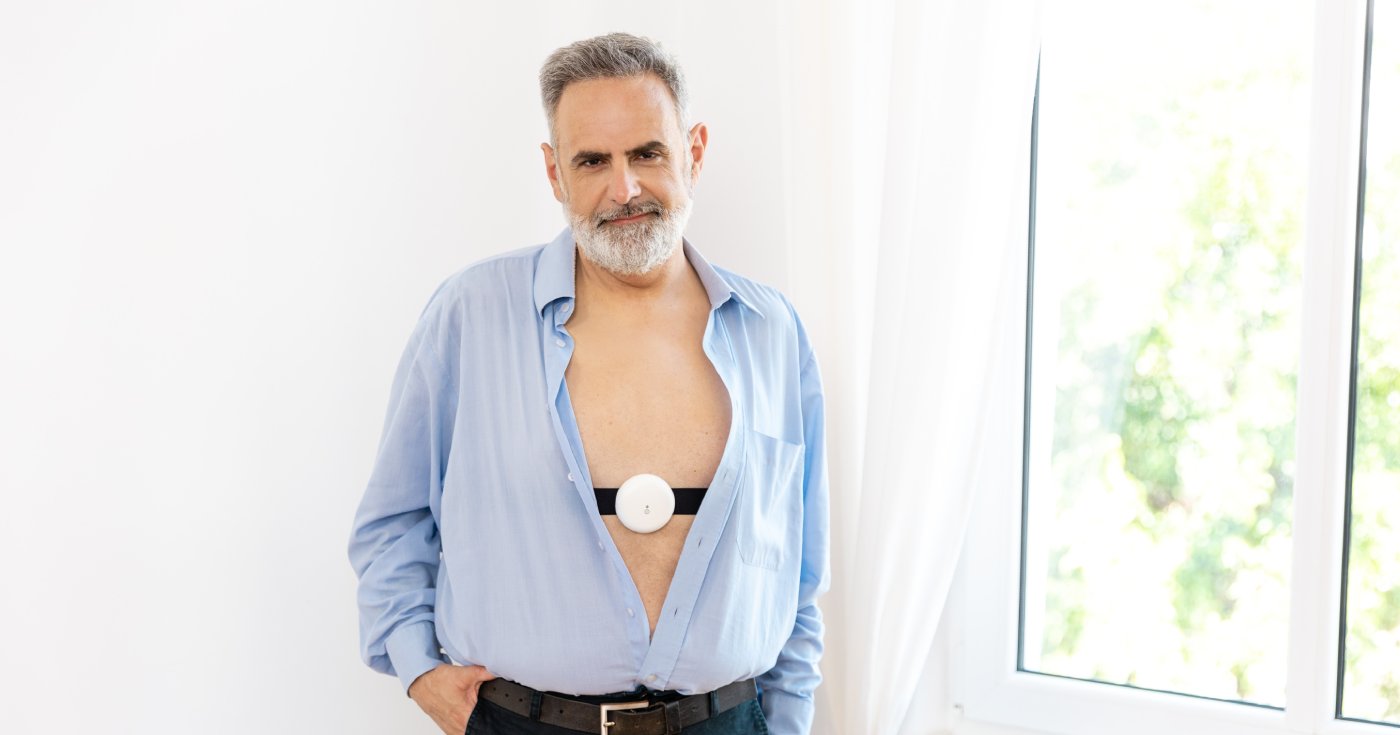

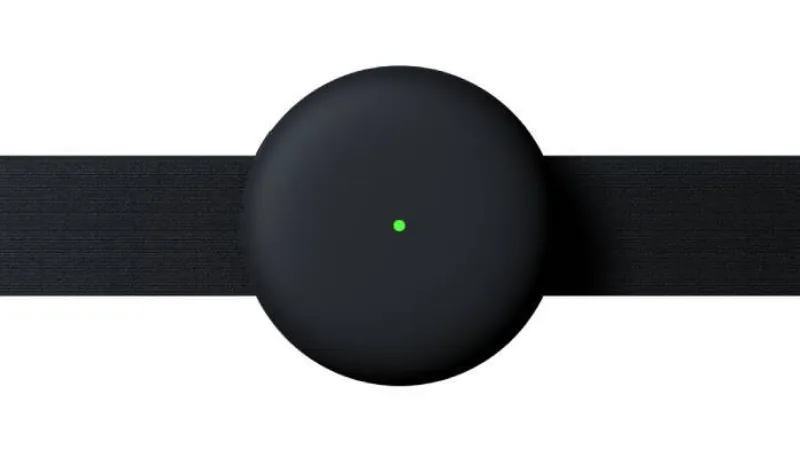


Połącz projekt Unity na Androidzie z Aidlabem. Skrypt będzie odbierał sygnał oddechowy i zmieniał położenie sześcianu w scenie.
Zbudujemy w Unity scenę, w której oddech steruje ruchem sześcianu. Telefon lub tablet z Androidem połączy się z Aidlabem i będzie odbierać sygnał na żywo.
Zaktualizowano w lipcu 2026 r. dla Aidlab Unity SDK 2.5.0, Unity 6.5 i aktualnego modelu uprawnień Bluetooth w Androidzie.
Potrzebna jest znajomość podstaw edytora Unity. Jeśli dopiero zaczynasz, przejdź najpierw kurs wprowadzający Unity.
Przygotowanie projektu
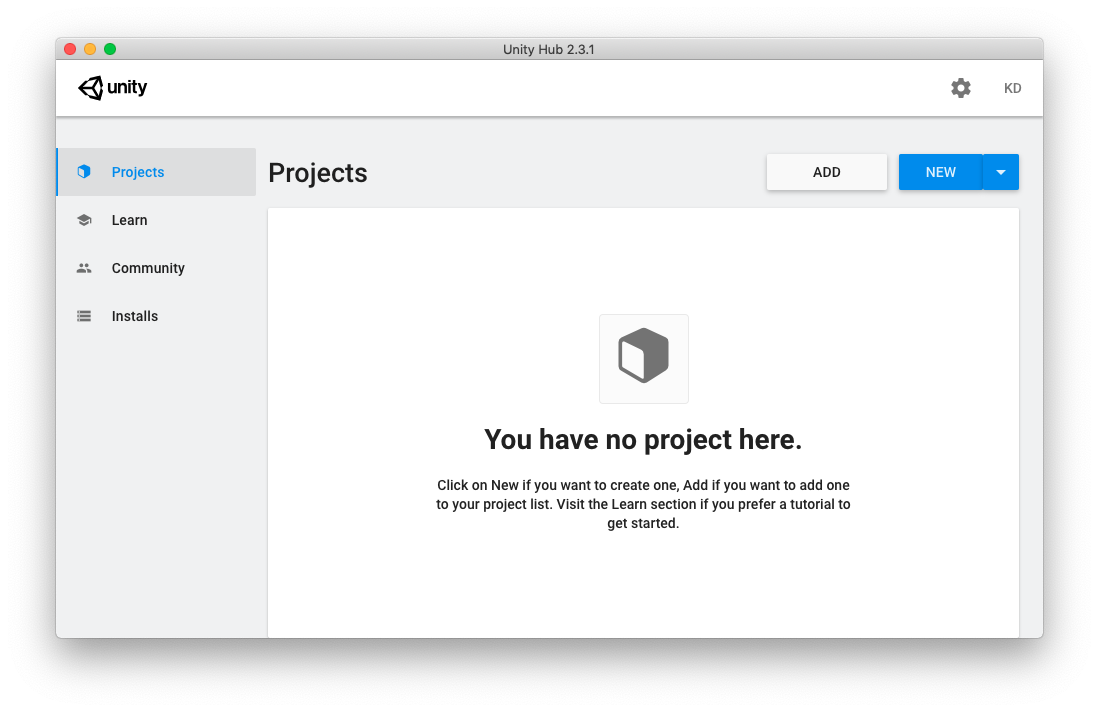
1. Utwórz nowy projekt Unity:
2. Utwórz pustą scenę, dodaj ją do profilu kompilacji i wybierz Android jako platformę docelową:
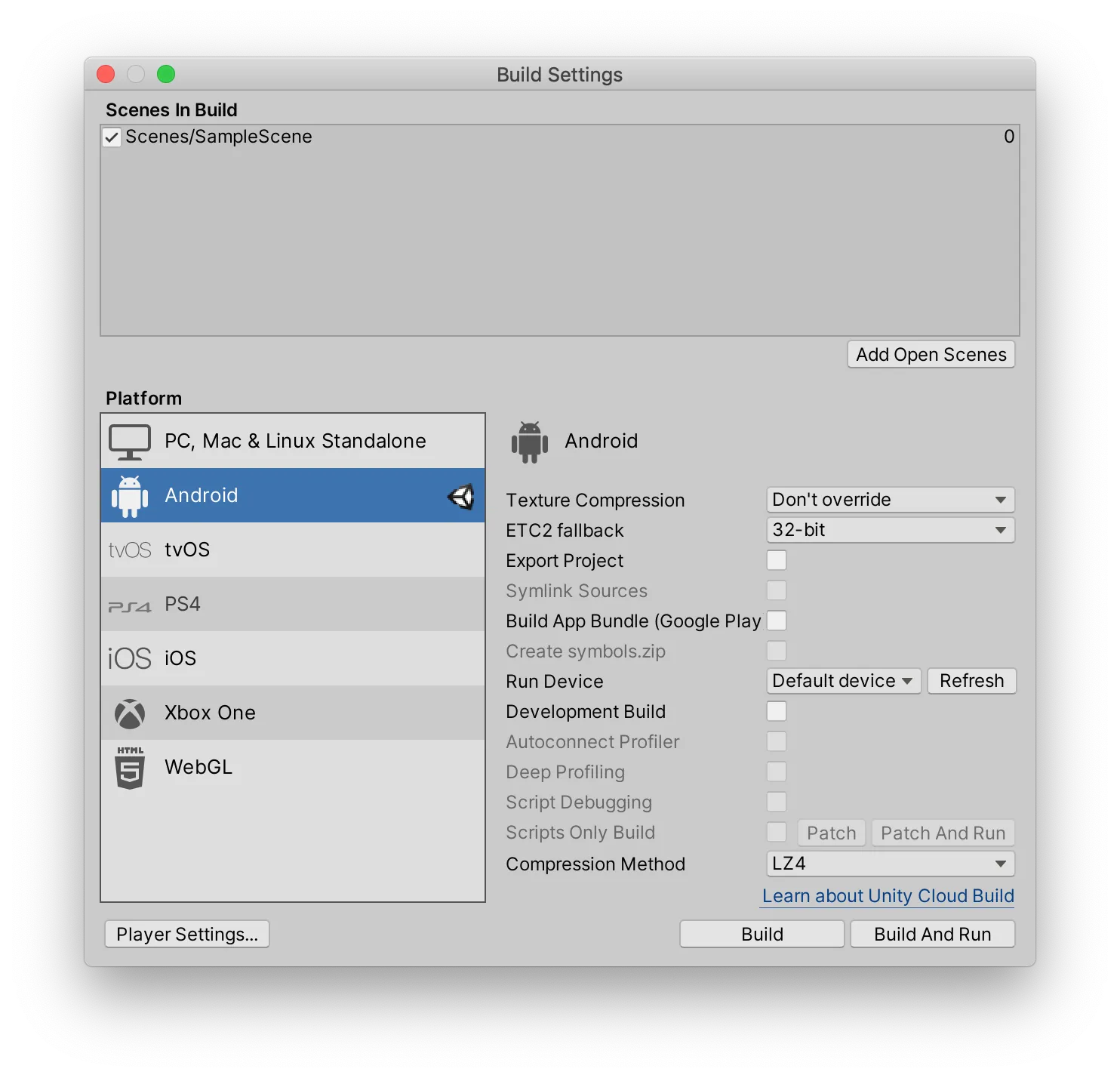
3. Pobierz Aidlab Unity SDK 2.5.0, a następnie wybierz Assets → Import Package → Custom Package... i zaimportuj wszystkie pliki.
4. Utwórz obiekt Cube, dodaj do projektu pokazany poniżej skrypt AidlabRespiration i przypisz go do obiektu Main Camera. Scena powinna wyglądać tak:
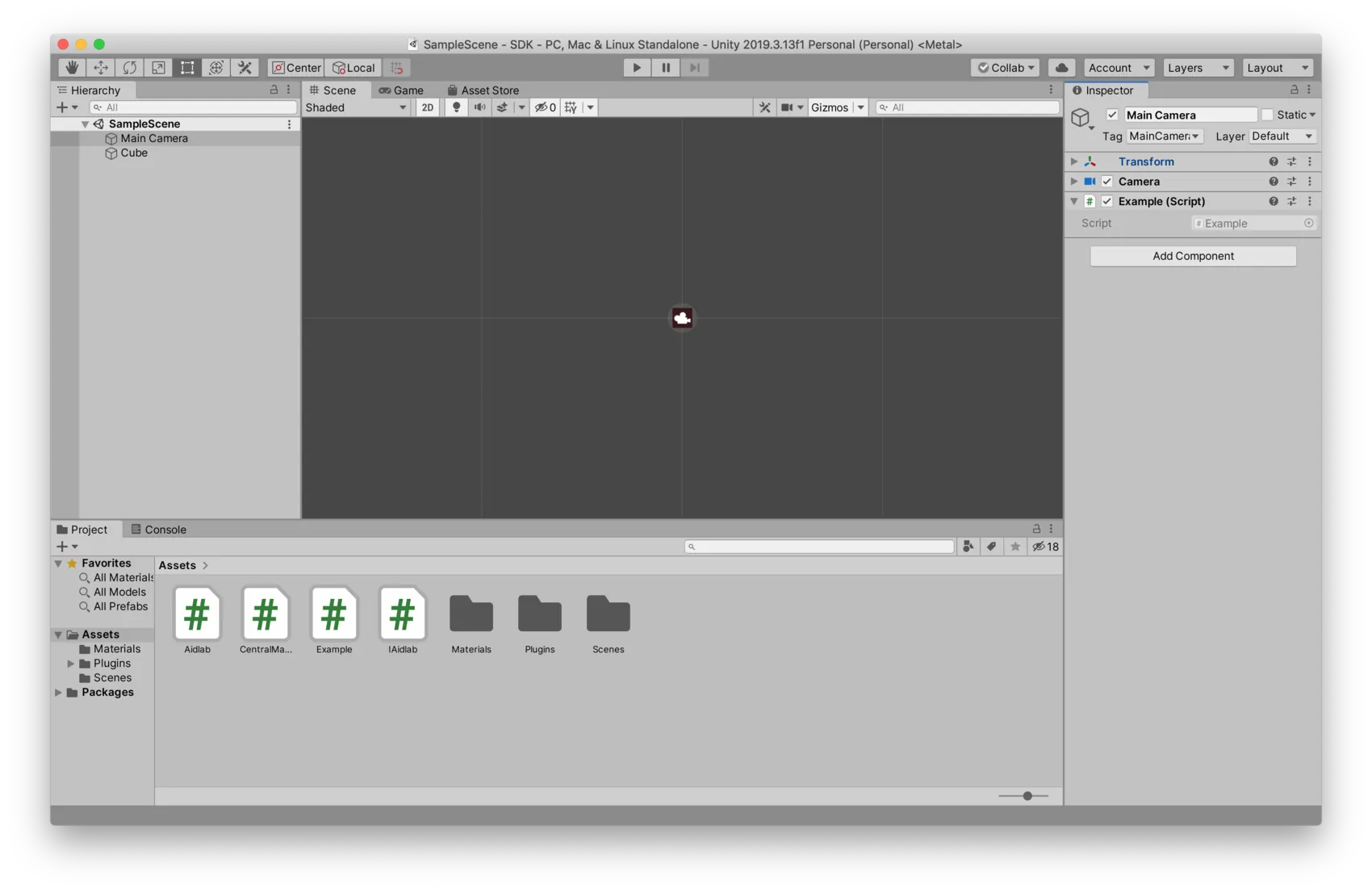
5. W Project Settings → Player → Android → Other Settings ustaw Minimum API Level na Android 9 (API 28) lub nowszy:

6. Podłącz urządzenie z Androidem, wybierz Build and Run i udziel aplikacji uprawnień do Bluetooth, gdy poprosi o nie system. Na Androidzie 11 i starszych wersjach system prosi o dostęp do lokalizacji, ponieważ tego uprawnienia wymagało wyszukiwanie urządzeń BLE.
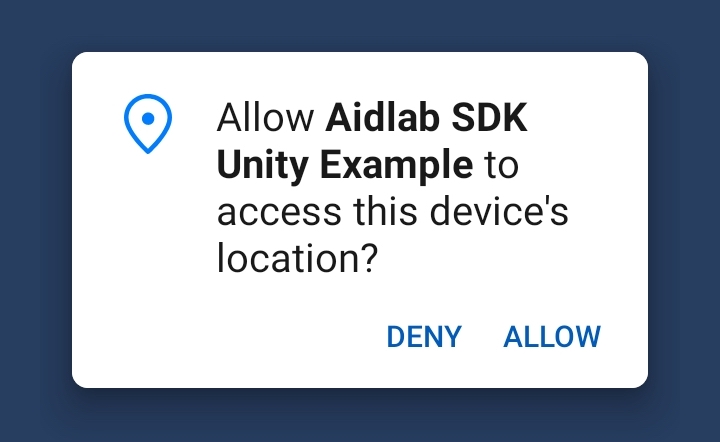
7. Sprawdź, czy Bluetooth jest włączony, uruchom Aidlaba i załóż go. Po uzyskaniu uprawnień AidlabSDK wyszukuje urządzenia i łączy się z tym o wskazanej nazwie.
Skrypt sterujący sześcianem
Na Androidzie używamy Aidlab.AidlabSDK i tych samych delegatów sygnałów co na iOS, macOS i Windows. SDK obsługuje uprawnienia oraz komunikację z kodem Java/Kotlin. Skrypt odbiera próbkę oddechu i na jej podstawie zmienia położenie sześcianu:
using Aidlab;
using UnityEngine;

public sealed class AidlabRespiration : MonoBehaviour
{
    private AidlabSDK sdk;
    private float currentRespirationSample;

    private void Start()
    {
        AidlabSDK.init("Aidlab");
        sdk = FindAnyObjectByType<AidlabSDK>();
        sdk.SetCollectSignals(
            new[] { Signal.Respiration },
            System.Array.Empty<Signal>()
        );
        AidlabSDK.aidlabDelegate.respiration.Subscribe(OnRespiration);
    }

    private void OnDestroy()
    {
        AidlabSDK.aidlabDelegate.respiration.Unsubscribe(OnRespiration);
    }

    private void OnRespiration()
    {
        currentRespirationSample = AidlabSDK.aidlabDelegate.respiration.value;
    }

    private void Update()
    {
        var cube = GameObject.Find("Cube");
        if (cube == null)
            return;

        Vector3 position = cube.transform.position;
        position.y = Mathf.Clamp(currentRespirationSample * 10, -4, 4);
        cube.transform.position = position;
    }
}
Android 12 i nowsze wersje wymagają uprawnień BLUETOOTH_SCAN oraz BLUETOOTH_CONNECT. Android 11 i starsze wersje korzystają z uprawnienia do dokładnej lokalizacji podczas wyszukiwania urządzeń BLE. SDK prosi o odpowiednie uprawnienie przed rozpoczęciem wyszukiwania. Aplikacja nie może samodzielnie włączyć Bluetooth bez udziału użytkownika, dlatego poproś go o włączenie go w ustawieniach lub oknie dialogowym systemu.
Delegaty obsługują też inne sygnały, między innymi EKG, temperaturę skóry, ruch, tętno, odstępy RR, aktywność, ciśnienie, EDA i GPS, a także synchronizację i zapisane próbki. Dostępność sygnału zależy od urządzenia. W docelowej aplikacji przechowuj referencję do sześcianu, zamiast szukać go przez GameObject.Find w każdej klatce. Obsłuż również zdarzenia Connected, Disconnected i ErrorReceived.